One of the many great features of IIS 8 is Remote Administration. It is not enabled by default but once configured this feature will allow you to maintain your web site using the IIS Manager gui without having to login to the server. IIS Remote Administration is also available with Windows Server 2008 and IIS 7.
- 7月 27 週三 201623:18
IIS 遠程管理
One of the many great features of IIS 8 is Remote Administration. It is not enabled by default but once configured this feature will allow you to maintain your web site using the IIS Manager gui without having to login to the server. IIS Remote Administration is also available with Windows Server 2008 and IIS 7.
- 11月 01 週六 201409:04
winodws autologon registry
Windows Registry Editor Version 5.00
[HKEY_LOCAL_MACHINE\SOFTWARE\Microsoft\Windows NT\CurrentVersion\Winlogon]
"ForceAutoLogon"="1"
"AutoAdminLogon"="1"
"DefaultUserName"="sales"
"DefaultPassword"="mypassword"
"DefaultDomainName"="name"
[HKEY_LOCAL_MACHINE\SOFTWARE\Microsoft\Windows NT\CurrentVersion\Winlogon]
"ForceAutoLogon"="1"
"AutoAdminLogon"="1"
"DefaultUserName"="sales"
"DefaultPassword"="mypassword"
"DefaultDomainName"="name"
- 10月 24 週五 201421:47
Installing Active Directory Tools Under Windows 7
This blog post is a step-by-step guide to installing the Active Directory Tools (i.e. Active Directory Users and Computers) on a Windows 7 machine. It has been tested on Windows 7 Enterprise but will probably work with Professional or Ultimate as well - Home users it will not work (but then why are you wanting to administer AD from a home machine??!!)
First of all you need to download the software from Microsoft. In the Microsoft Download Centre these are called "Remote Server Administration Tools for Windows 7" a direct link to the download page is given below;
http://www.microsoft.com/downloads/details.aspx?displaylang=en&FamilyID=7d2f6ad7-656b-4313-a005-4e344e43997d
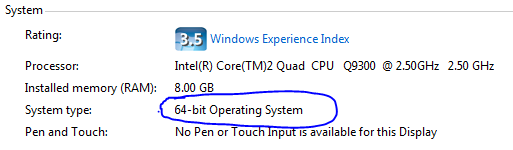
If you scroll down to the "Files in This Download" section of the page you'll see two files. Depending on whether or not you're running 32-bit or 64-bit Windows 7 you need to pick the correct file. If you're unsure of which version you're running then go to the start button, right-click "Computer" and then select "Properties". You'll see something like this;
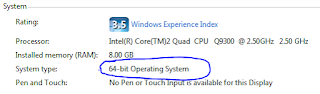
System Information (64-bit/32-bit)
Look at the "System type:" value and you'll see what version of Windows you're running.
If you're running 32-bit then you need to download the file which starts "x86..." (currently this is"x86fre_GRMRSAT_MSU.msu" but it might change). For 64-bit users you need to download the file which begins "amd64..." (currently this is "amd64fre_GRMRSATX_MSU.msu") - this is true even if you're running a non-AMD 64-bit processor. The reason for this I'll leave Microsoft to explain ...
Once you've got the file install it (it's a standard KB update file).
After it's been successfully installed go to the Start Menu > Control Panel and select "Programs";

"Turn Windows Features on or off" under "Programs and Features"
The "Windows Features" dialog box will be displayed, scroll down to "Role Administration Tools" (under "Remote Server Administration Tools") and select the the following items;
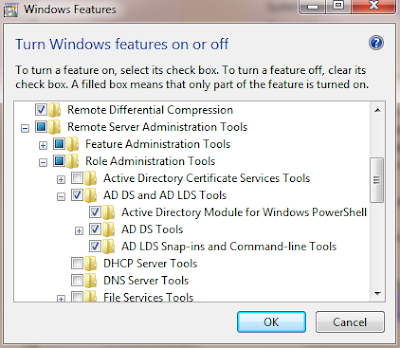
"Windows Features" dialog
Click "OK" to make the changes.
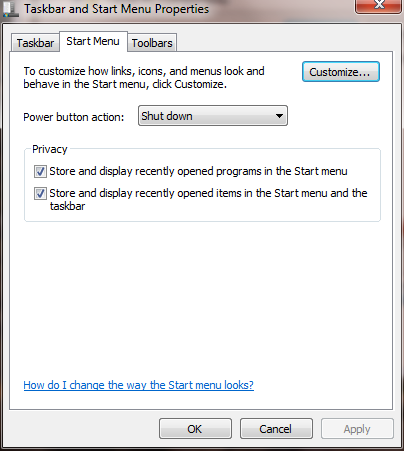
In order to make finding these under the Start Menu a little easier right-click the Start Button and select "Properties";
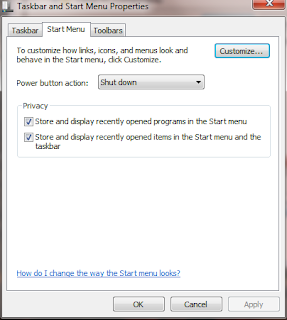
Taskbar and Start Menu Properties
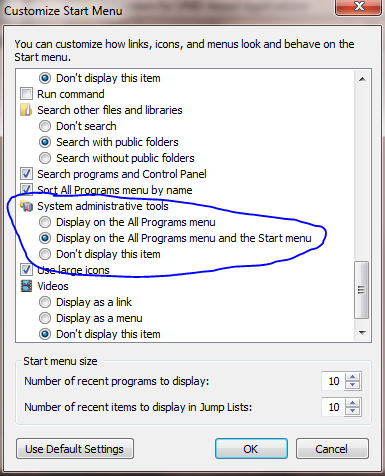
Select "Customize ..." and then scroll down the list until you see "System administrative tools" and choose where you want the tools to display;
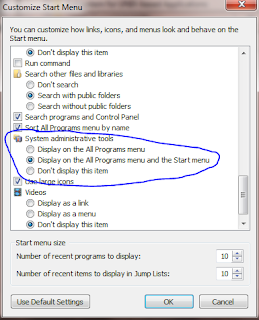
Customize Start Menu
Under the Start Menu you will now see an "Administrative Tools" option, under this you'll see the new AD Tools;
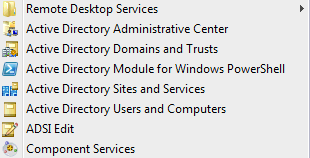
Active Directory Start Menu Items
NOTE: Sometimes a reboot is required to pick up these changes!
This blog post is a step-by-step guide to installing the Active Directory Tools (i.e. Active Directory Users and Computers) on a Windows 7 machine. It has been tested on Windows 7 Enterprise but will probably work with Professional or Ultimate as well - Home users it will not work (but then why are you wanting to administer AD from a home machine??!!)
First of all you need to download the software from Microsoft. In the Microsoft Download Centre these are called "Remote Server Administration Tools for Windows 7" a direct link to the download page is given below;
http://www.microsoft.com/downloads/details.aspx?displaylang=en&FamilyID=7d2f6ad7-656b-4313-a005-4e344e43997d
If you scroll down to the "Files in This Download" section of the page you'll see two files. Depending on whether or not you're running 32-bit or 64-bit Windows 7 you need to pick the correct file. If you're unsure of which version you're running then go to the start button, right-click "Computer" and then select "Properties". You'll see something like this;

Look at the "System type:" value and you'll see what version of Windows you're running.
If you're running 32-bit then you need to download the file which starts "x86..." (currently this is"x86fre_GRMRSAT_MSU.msu" but it might change). For 64-bit users you need to download the file which begins "amd64..." (currently this is "amd64fre_GRMRSATX_MSU.msu") - this is true even if you're running a non-AMD 64-bit processor. The reason for this I'll leave Microsoft to explain ...
Once you've got the file install it (it's a standard KB update file).
After it's been successfully installed go to the Start Menu > Control Panel and select "Programs";

The "Windows Features" dialog box will be displayed, scroll down to "Role Administration Tools" (under "Remote Server Administration Tools") and select the the following items;

Click "OK" to make the changes.
In order to make finding these under the Start Menu a little easier right-click the Start Button and select "Properties";

Select "Customize ..." and then scroll down the list until you see "System administrative tools" and choose where you want the tools to display;

Under the Start Menu you will now see an "Administrative Tools" option, under this you'll see the new AD Tools;

NOTE: Sometimes a reboot is required to pick up these changes!
- 10月 24 週五 201420:12
Using BgInfo to Display System Information on the Desktop

If you have ever done system administration, you probably have the problem where you connect to so many servers that you have no idea which computer you are connected to half the time. BGInfo is a great utility that lets you display useful system information right on the desktop. And it works for regular Windows users as well.
SCHOOL NAVIGATION
- What Are the SysInternals Tools and How Do You Use Them?
- Understanding Process Explorer
- Using Process Explorer to Troubleshoot and Diagnose
- Understanding Process Monitor
- Using Process Monitor to Troubleshoot and Find Registry Hacks
- Using Autoruns to Deal with Startup Processes and Malware
- Using BgInfo to Display System Information on the Desktop
- Using PsTools to Control Other PCs from the Command Line
- Analyzing and Managing Your Files, Folders, and Drives
- Wrapping Up and Using the Tools Together
- 10月 23 週四 201421:57
How to Make a Domain User the Local Administrator for all PCs
1